
Choose the light first. Then build the system around it.
A practical path from the result you want to the light engine, voltage, power, controller, wiring, housing and smart-home route that can deliver it. You do not need to be an electrician or a protocol expert to make a good first decision. Follow the numbered route from result to working system.
The one-sentence model: a smart lighting system is light source + driver/power + controller + protocol/gateway + housing + automation. You can buy them in one kit or as separate parts, but every responsibility still has to be satisfied.
Read this page in order the first time
The quickest way to get lost is to start with a protocol name. The quickest way to get a working light is to start with the result you can see and measure.
Animation, comfortable white light, a fixture, or a mix.
Addressable, RGBW, CCT, single-color or a fixture.
Match the light engine and keep long runs practical.
Load, headroom, cable, fuse and injection.
The controller must speak to the chosen light.
Connect a short piece before cutting or installing.
Choose the network, app and automation layers that sit above the light.
Add the housing, service access and test record.
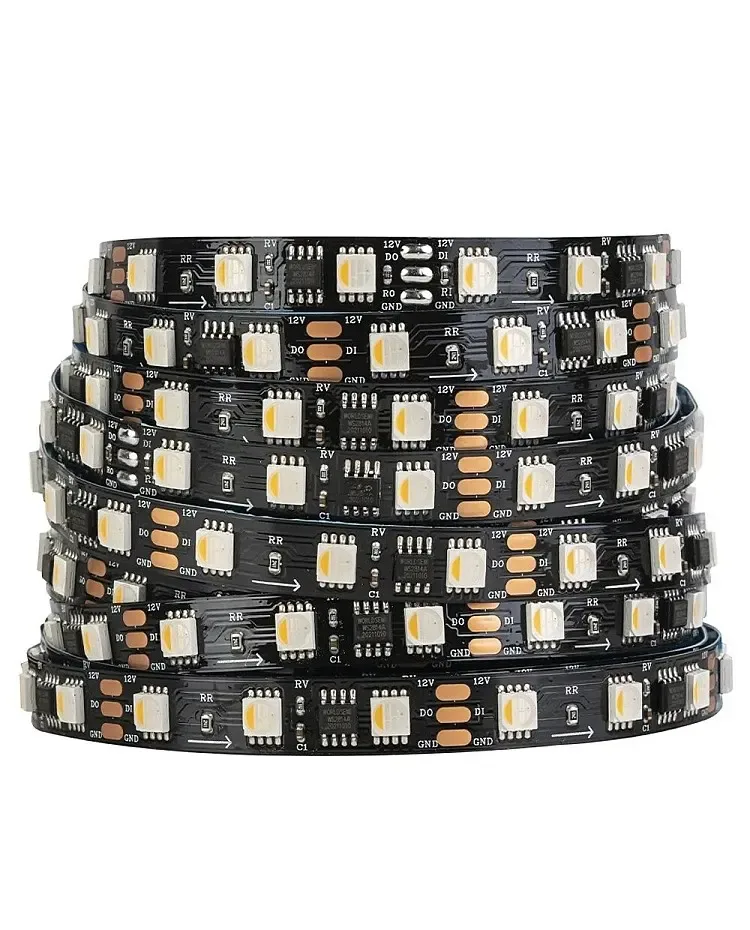
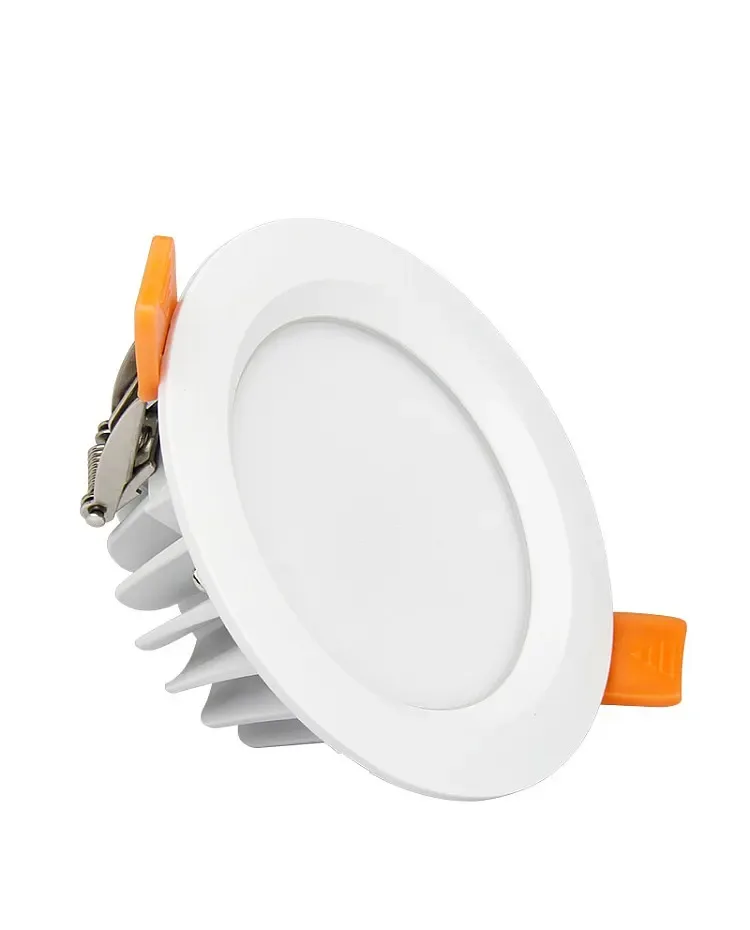
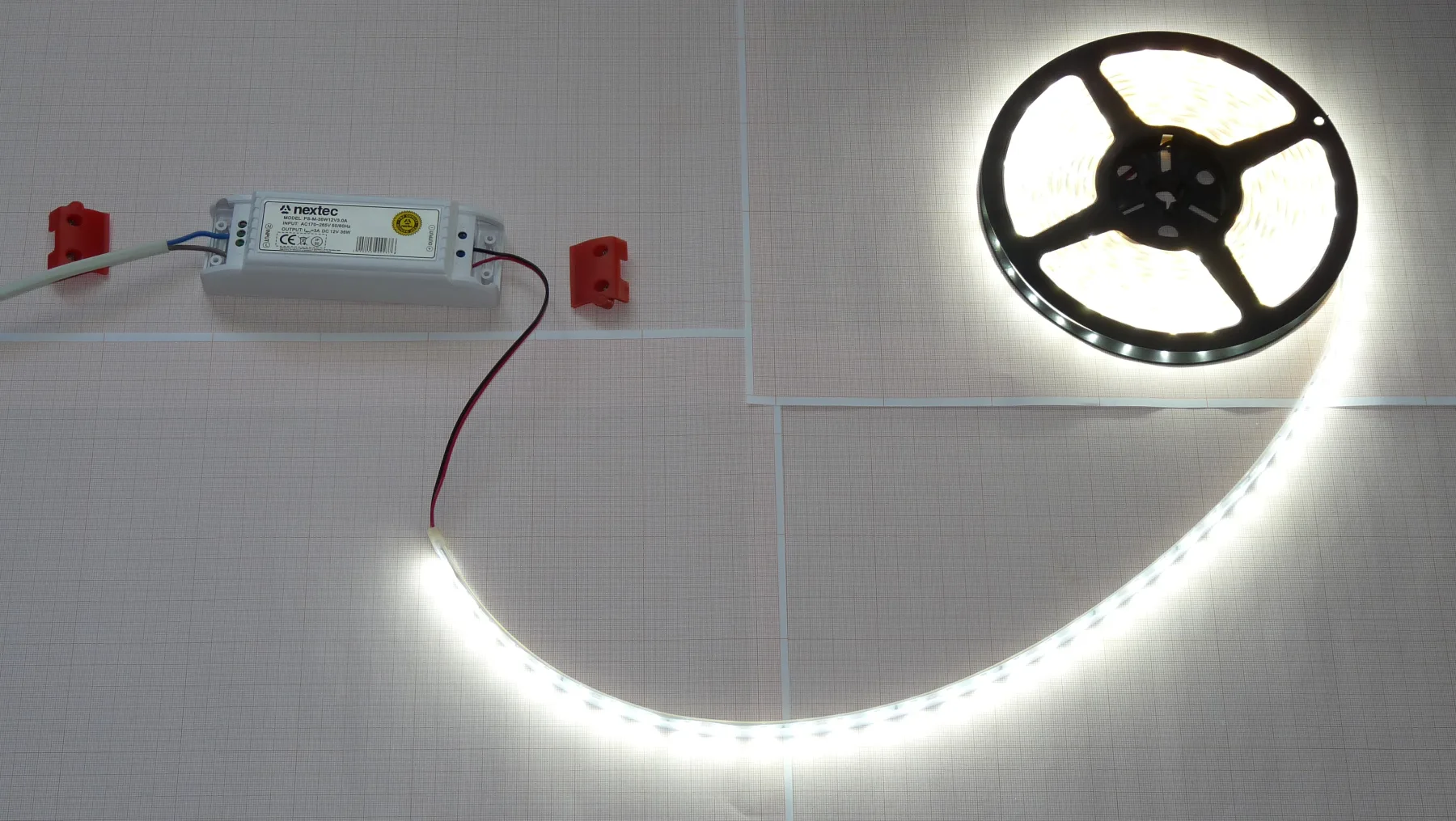
The photos below are real local product records. They show the physical layer only; open the record for the exact variant, technical specifications and compatibility evidence.
Decode the label before you shop
Product listings often put voltage, color, protocol and marketing words on one line. Separate them into jobs first. This example is a teaching label, not a promise about every product.
Light engine
The physical part that makes light: a strip, neon flex, module, downlight or finished fixture.
Pixel / addressable
A pixel or pixel group can receive its own color and brightness value, so sections can show different effects.
Channel
One independently controlled color or white path. RGB has 3; RGBW has 4; RGB+CCT normally has 5.
LED IC
The tiny chip that understands the controller data inside an addressable pixel. WS2812B, SK6812 and WS2814 are examples.
Driver / power supply
The electrical stage that supplies the voltage or current the light requires. Constant-voltage and constant-current are different jobs.
Controller
The logic device that chooses on/off, brightness, color, CCT, effects or scenes and sends a signal to the light.
Protocol
A documented set of rules for devices to exchange commands. Do not use this one word for every smart-home name: Zigbee is a network standard, Matter is an application standard, WLED is firmware/interface, Tuya is an ecosystem and Home Assistant is a platform.
Coordinator / gateway
The network device that joins a radio product to its ecosystem. Zigbee needs one coordinator; Thread Matter needs a border router.
Automation
A repeatable rule: a trigger happens, optional conditions are checked, then an action changes the light.
IP rating
A protection classification for a product or enclosure. The assembled cable entry and cut end can change the real installation boundary.
CCT / Kelvin
Correlated color temperature describes the apparent warmth of white light. Lower Kelvin looks warmer; higher Kelvin looks cooler.
CRI
A measure of how naturally a light reveals colors compared with a reference. It is separate from CCT and does not describe smart control.
Ask four concrete questions: What light engine is inside? What voltage and maximum load does it need? Which signal or channel does the controller use? Which gateway, firmware and integration were actually tested?
First choose what you want to see
Answer these three questions in plain language. You can change the protocol later, but changing the light engine after installation often means replacing wiring and power hardware.
Decorative/effect light prioritizes movement and color. Functional light prioritizes comfortable white light, brightness and predictable dimming.
If yes, choose addressable. If the whole run can change together, analog RGBW or CCT is usually simpler.
A desk test, dry room, damp area, outdoor sign and built-in millwork have different IP, heat, cable and service requirements.
I want effects
Moving colors, gradients, pixels or segments.
Start with an addressable RGB/RGBW light and a WLED-capable controller.Open matching route BI want room light
Reliable dimming, warm/cool white or a normal fixture.
Start with a CCT, RGBW or single-color light and a matched driver.Open matching route CI need both
A daily light plus an occasional effect mode.
Use separate zones or choose an RGB+CCT engine after checking the channel count.Open matching routeFollow one complete example: a 2 m shelf light
Here is one small build from a blank idea to a tested light. Read it as a repeatable method, not as a universal parts list: the exact strip label, controller revision and installation rules always win.
Important: the numbers below are teaching values so the calculation is easy to follow. 14.4 W/m is not a claim about every RGBW strip. Replace it with the exact value on the product record or label before you buy a driver, fuse or cable.
Indoor, dry room, visible cable exit and a serviceable controller.
Show gradients occasionally, with a stable white mode for normal use.
Prove local manual control before adding Home Assistant scenes or sensors.
Gather these parts
- Light engine
A 2 m section of 24 V addressable RGBW strip. Read the actual label for watts per metre, LED IC, cut interval and data direction.
See matching records - Controller
A WLED-capable controller with an output and GPIO that match the strip. The controller must be powered according to its own manual.
See matching records - Power supply
A listed 24 V DC supply with enough continuous wattage and airflow for the calculated load. Do not choose by voltage alone.
See matching records - Protection and wire
Inline fuse and holder near the supply positive, plus wire and terminals rated for the branch current and temperature.
See matching records - Housing
Aluminum profile, diffuser, end caps and a serviceable cable exit. Install the strip only after the bench test passes.
See matching records - Test tools
USB cable, phone or laptop, multimeter, side cutters, wire stripper, insulated screwdriver, labels and a camera.
See matching records
Write these six values
- Strip voltage
For this example: 24 V DC. Your label may be different.
- Rated load
Watts per metre, maximum current or both.
- Signal
LED IC, data input arrow and any clock line.
- Channels
RGB, RGBW, RGB+CCT or a single white channel.
- Cut interval
Where the strip may be cut without damaging a segment.
- Installation length
Measure the actual illuminated path, including bends and service loops.
2 m x 14.4 W/m = 28.8 W28.8 W x 1.25 = 36 W design load36 W / 24 V = 1.5 AStart with a 24 V supply that can continuously meet at least the calculated design load, then match the fuse and cable to the expected branch current. The 25% factor is a starting headroom rule, not a substitute for the manufacturer's data, temperature derating or local electrical requirements.
It does not prove that the controller can switch the strip, that the LED IC is supported, that a connector can carry 1.5 A, or that the completed profile will stay cool. Those are separate checks in the steps below.
Ten small steps, with a visible success check
- 01Read the strip before buying anything
Do: Find the printed voltage, watts per metre, LED IC, channel type and an arrow or DI/DO marking. Photograph the label and write the values into the build record.
You should see: You have a concrete voltage and load value, not just "RGBW strip".
If not: If a value is missing, pause and ask for the exact variant or datasheet.
- 02Cut a short test piece
Do: With the supply unplugged, cut a 20-30 cm piece on a marked cut line. Keep the remaining reel labelled so the data direction and polarity are not lost.
You should see: The test piece has a visible +, -, data input and cut pads.
If not: If there is no clear input arrow or pad marking, do not guess; identify the strip first.
- 03Make the power calculation
Do: Use the label value, not the example below, to calculate the 2 m load. Add starting headroom, then convert watts to current at 24 V.
You should see: You know the minimum supply wattage and branch current before selecting a fuse or cable.
If not: If the label gives only a maximum current, use that value and record the assumption.
- 04Wire with power disconnected
Do: Connect supply positive through the fuse to the strip positive. Connect supply negative to strip ground and controller ground. Connect the controller DATA output to the strip input arrow. Never put 24 V on a controller 5 V pin.
You should see: Every terminal has a named destination and the controller and strip share a signal ground.
If not: If the controller has separate logic and strip power terminals, follow its exact wiring diagram.
- 05Do a pre-flight measurement
Do: Before plugging in, check polarity with the multimeter, confirm there is no short between positive and ground, inspect screw terminals and verify the fuse is installed in the positive branch.
You should see: The meter does not show a short and the measured supply output is the strip voltage.
If not: If anything is hot, loose, wet or the reading is wrong, unplug and correct it before continuing.
- 06Flash WLED and join Wi-Fi
Do: Use Chrome or Edge to open install.wled.me, flash the supported board, join the temporary WLED-AP, open 4.3.2.1, then enter Wi-Fi Setup and save the home network and a memorable mDNS name.
You should see: The WLED control page opens from the temporary address, then from the new local name or IP.
If not: If the device disappears, reconnect to WLED-AP and repeat Wi-Fi setup before changing LED wiring.
- 07Configure the LED output
Do: In LED settings, select the exact GPIO, LED type/IC, color order, RGBW channel order and pixel count. Start with a conservative maximum current and save.
You should see: The saved settings describe the same strip you photographed in step 01.
If not: If the IC is unknown, test only a supported profile and label the result as unconfirmed.
- 08Test solid colors before effects
Do: Set solid red, green, blue and white one at a time. Then test 10%, 50% and 100% brightness. Watch the controller, connectors and supply during the white test.
You should see: All pixels respond, colors are in the correct order, white is stable and nothing reboots or heats unexpectedly.
If not: Use the symptom table below instead of changing several parts at once.
- 09Save evidence before installation
Do: Save a simple preset, photograph the working wiring, record firmware, LED settings, measured voltage and the supply rating. Mark the tested length and date.
You should see: Someone else can rebuild the same bench test from the record.
If not: If you cannot reproduce it, the build is not ready to hide inside a profile.
- 10Install the profile last
Do: Clean the aluminum, place the diffuser and leave access to the fuse, controller reset, connectors and any injection point. Re-test after the strip is in the housing.
You should see: The light is even enough for the use, the profile is not trapping excessive heat and service access remains possible.
If not: If dots, glare or heat appear, change the optical or thermal design before shipping.
Do not install until these checks pass
| Test | Expected result | Why it matters |
|---|---|---|
| Red test | The complete test section is red. | Confirms the first color channel and basic output. |
| Green / blue test | Each color appears by itself with no swapped channels. | Confirms color order and channel mapping. |
| White test | White is stable at a safe brightness and the controller does not restart. | Exposes the highest practical load and weak power paths. |
| Pixel response | Every pixel or segment responds to the selected effect. | Confirms data direction, IC profile, count and ground. |
| Physical check | No connector, wire or supply becomes unexpectedly hot. | Catches poor terminals, undersized conductors and hidden overloads. |
Map the symptom to one next move
| Symptom | Check first | Next safe move |
|---|---|---|
| Nothing lights | Measure the supply at the strip, then check positive/negative polarity, fuse and controller enable state. | Do not raise the voltage. Match the printed strip voltage. |
| Only the first pixel lights | Check the arrow direction, DATA input pad, shared ground and selected LED IC. | Retest with the 20-30 cm piece and one known-supported IC profile. |
| Red, green and blue are swapped | Open LED settings and compare the color order with the strip variant. | Change color order and repeat the three solid-color tests. |
| White causes a restart | Watch supply voltage during the white test and compare current with the design calculation. | Reduce brightness for diagnosis, then fix headroom, cable or power distribution. |
| The far end is dim | Measure voltage at the far end under load and inspect injection wires and connector temperature. | Shorten the branch or add a correctly fused injection point after calculating it. |
| Phone cannot control WLED | Confirm the controller joined the intended Wi-Fi, then open its IP or mDNS name from the same network. | Reconnect to WLED-AP only for recovery; do not assume the strip wiring is the network problem. |
Only after the short section passes should you cut the full 2 m length, finish the profile and add automation. Keep the photo, measured voltage, firmware, LED settings and exact variant together with the order or project record.
Start with a safe, small bench test
A first build should be short, visible and easy to unplug. Do not begin inside a ceiling or wall where a bad connection can stay hidden.
For a beginner test
- Use a listed low-voltage supply that matches the light voltage.
- Use a short light section, clear polarity labels and a fuse close to the supply.
- Keep the controller, connectors and supply on a non-flammable work surface.
- Take a photo of the working wiring before moving it into a profile.
Stop and get qualified help
- You need to alter mains wiring, a plug, a junction box or a fixed building circuit.
- The supply is hot, buzzing, damaged, wet or missing a clear rating label.
- You plan to place a high-current supply where it cannot be inspected or ventilated.
- The light is for a public/commercial installation with a compliance requirement.
Low voltage does not mean no risk. A 24 V supply can still deliver enough current to heat a thin wire or connector. The guide helps you plan; local electrical rules and the exact supply documentation control the final installation.
Choose the light source before the smart protocol
The light engine decides how many channels exist, how much current flows, what the controller must output and whether you can create per-pixel effects.
| Light engine | What it does | Good first use | What must match |
|---|---|---|---|
| Addressable RGB / RGBW | Each pixel or group can change independently. | Effects, gradients, signs and displays. | LED IC, data direction, color order, injection and controller capacity. |
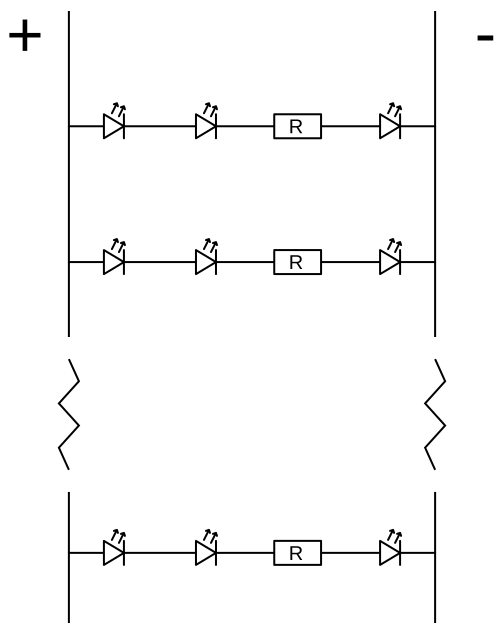
| Analog RGB / RGBW | The whole run changes together through PWM channels. | Simple color washes and everyday accent light. | Controller, driver and channel order must match; no per-pixel effects. |
| CCT / tunable white | Two white channels blend warm and cool emitters. | Kitchens, bedrooms, work areas and circadian scenes. | CCT range and driver type are variant-specific; CCT is not a CRI result. |
| Single-color white | One channel dims one color temperature. | Task light, shelves and the simplest first build. | Still needs the correct voltage, wattage and dimming method. |
What “pixel” means here
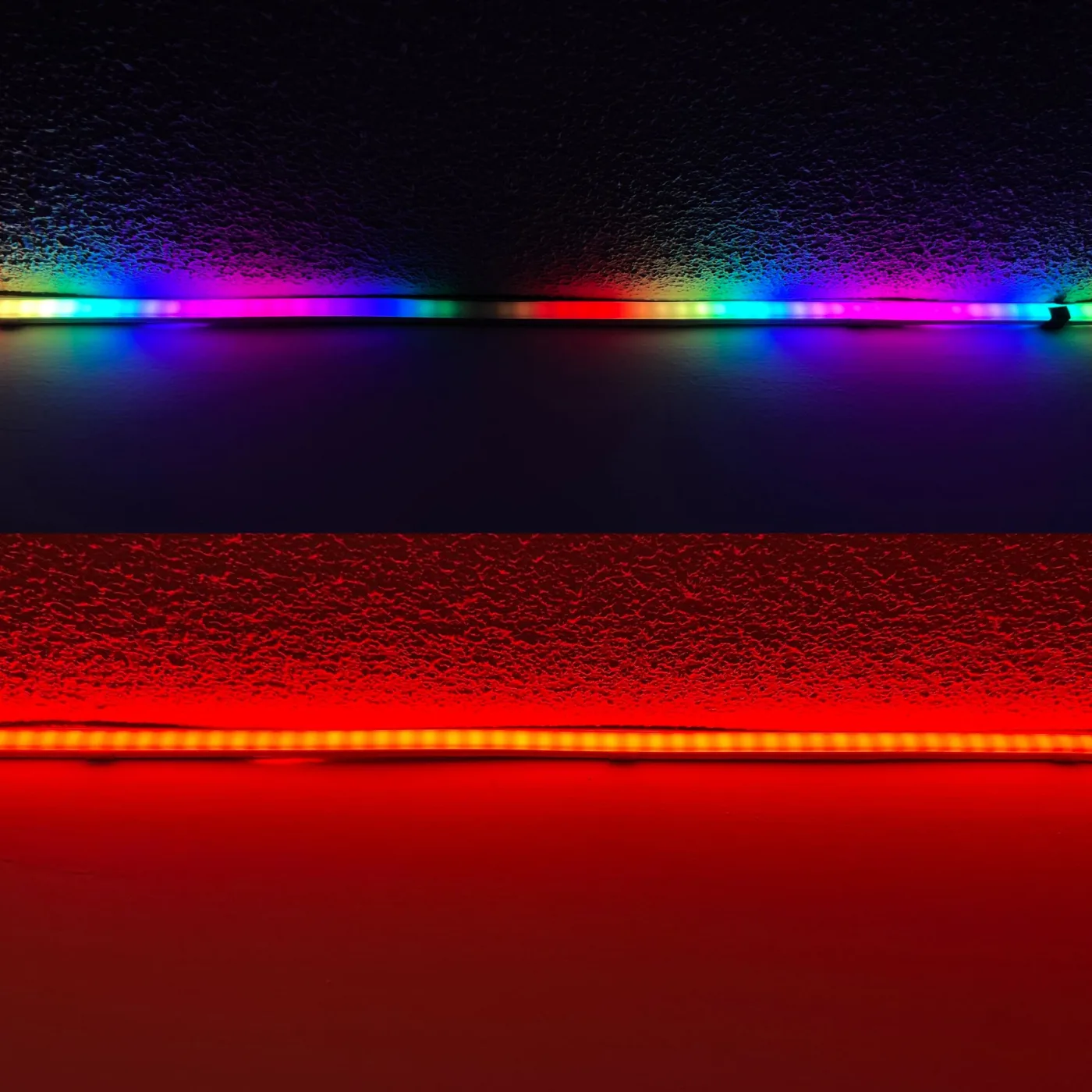
Every addressable pixel receives a data value, so one strip can show a moving gradient while another section stays white. The LED IC is part of the specification, not a decorative detail.
What “dimming” means here
A dimmable or CCT light usually changes one channel or a small group together. It is often easier to make comfortable room light, but it cannot create true per-pixel animation.
Choose voltage from the light, not from the app
Voltage is the electrical pressure the light expects. A 24 V strip is not made safe by plugging it into a 12 V or 5 V supply, and a lower-voltage strip can be damaged by a higher supply.
| Voltage | Beginner use | Why it changes the design |
|---|---|---|
| 5 V | Short pixels and USB-sized bench tests. | Low voltage is easy to touch, but current rises quickly on longer runs. |
| 12 V | Short-to-medium pixel or analog runs. | A common compromise for compact projects; verify the strip and controller input. |
| 24 V | Longer strips, COB tape and lower distribution current. | Often easier to distribute over distance; the strip still needs its matching driver. |
| 48 V | Long architectural runs and specialized systems. | Useful for reducing current, but requires a compatible light engine and conversion plan. |
If the light says 24 V DC, the driver output must be 24 V DC. If a fixture says it needs a constant-current driver, a generic 24 V strip supply is the wrong part even when the voltage number looks familiar.
Use the exact product record to confirm voltage, LED IC, cut interval and variant before selecting a controller or supply.
Open the light recordCalculate the power before you buy the driver
Power is the amount of electrical work the light uses. Driver capacity should be higher than the calculated load, while the fuse and cable should protect the actual branch.
watts = watts_per_metre x metresamps = watts / voltsdesign watts = watts x 1.25A 5 m strip rated at 14.4 W/m uses 72 W. Add 25% headroom: 90 W. At 24 V that is 3.75 A. A 24 V supply rated at least 90 W is the starting point; the exact strip, ambient temperature, cable and fuse still need checking.
Do not run a supply continuously at its printed maximum. Leave room for tolerance, heat and the way the product is actually configured.
Put the fuse close to the supply on the positive branch. Size it just above the expected branch current and never larger than the wire can safely carry.
Long or high-current runs may need power fed at more than one point. If the far end is dim or changes color, measure voltage there instead of hiding the symptom.
Do not connect positive rails from separate supplies to the same strip. Segment the loads; shared grounds are a separate design decision.
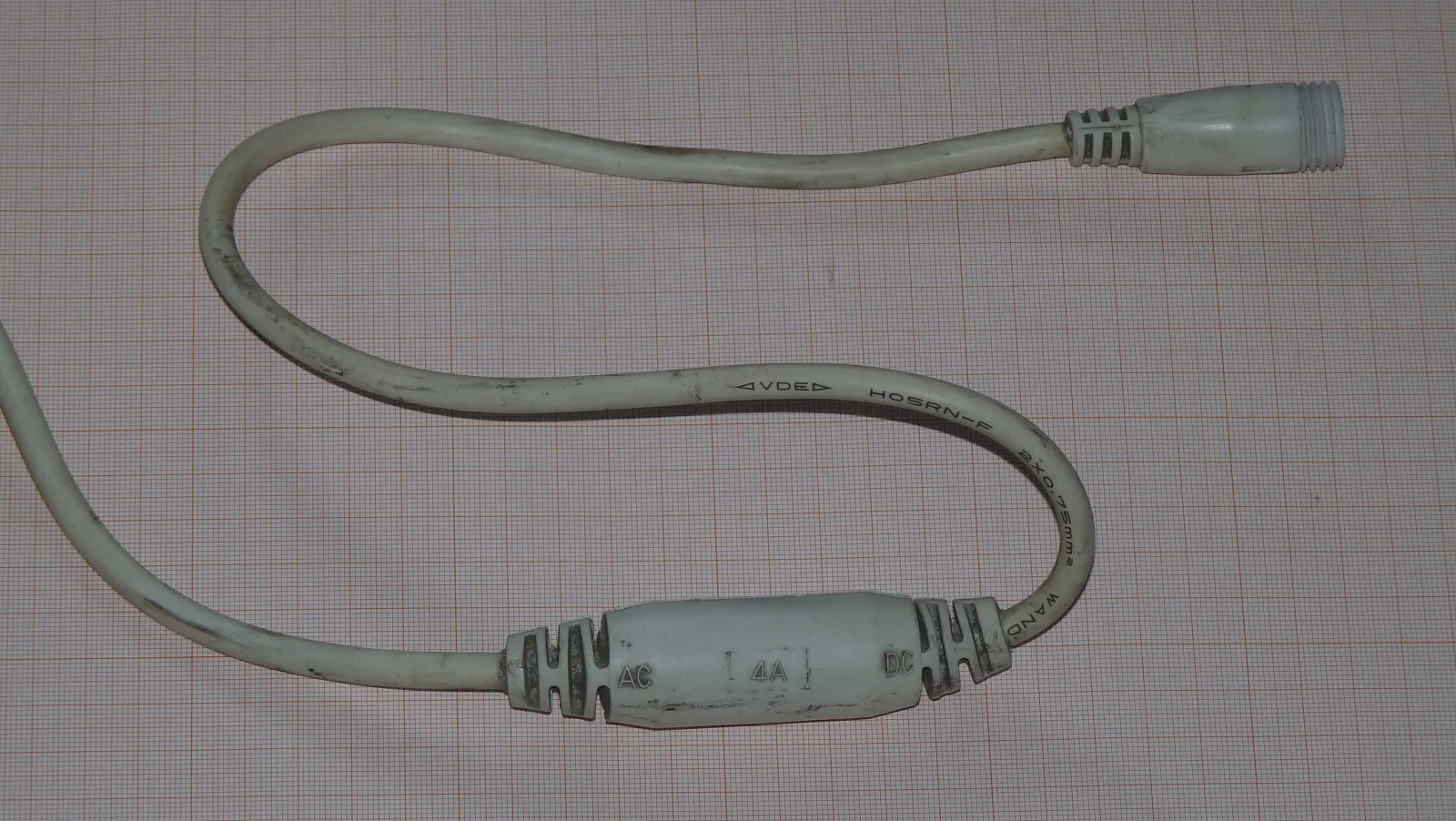
A driver supplies power; a controller sends intent
These words are often mixed together in shopping listings. Keep them separate in your notes even when one box happens to contain both.
| Engine | Signal | Hardware boundary | Common beginner mistake |
|---|---|---|---|
| Addressable pixel | DATA (and sometimes CLOCK) | WLED-capable controller, correct LED IC profile and a shared signal ground. | Treating a pixel strip like a 4-channel analog strip. |
| Analog RGB/RGBW | PWM channel per color | Controller plus a driver/MOSFET stage rated for the strip current. | Connecting a high-current strip directly to a tiny microcontroller pin. |
| CCT | Warm-white and cool-white channels | CCT controller and constant-voltage or constant-current driver as specified. | Assuming any two-channel dimmer gives the desired CCT range. |
| Finished fixture | Fixture-specific input or smart driver | The exact driver, gateway and pairing path from the product record. | Inferring compatibility from a Zigbee, Matter or Wi-Fi logo. |
Wire the smallest useful test first
Do not start by cutting the full installation length. Prove the power, polarity, signal and first control action on a short section while every connection is visible.
Unplug the supply before moving a positive, negative or data wire.
Find +, -, 5V/12V/24V, DI/DO and channel names.
The controller signal ground and light ground normally need a common reference.
Place the positive-side fuse close to the low-voltage supply.
Solid red, green, blue, white and dimming reveal mistakes before effects do.
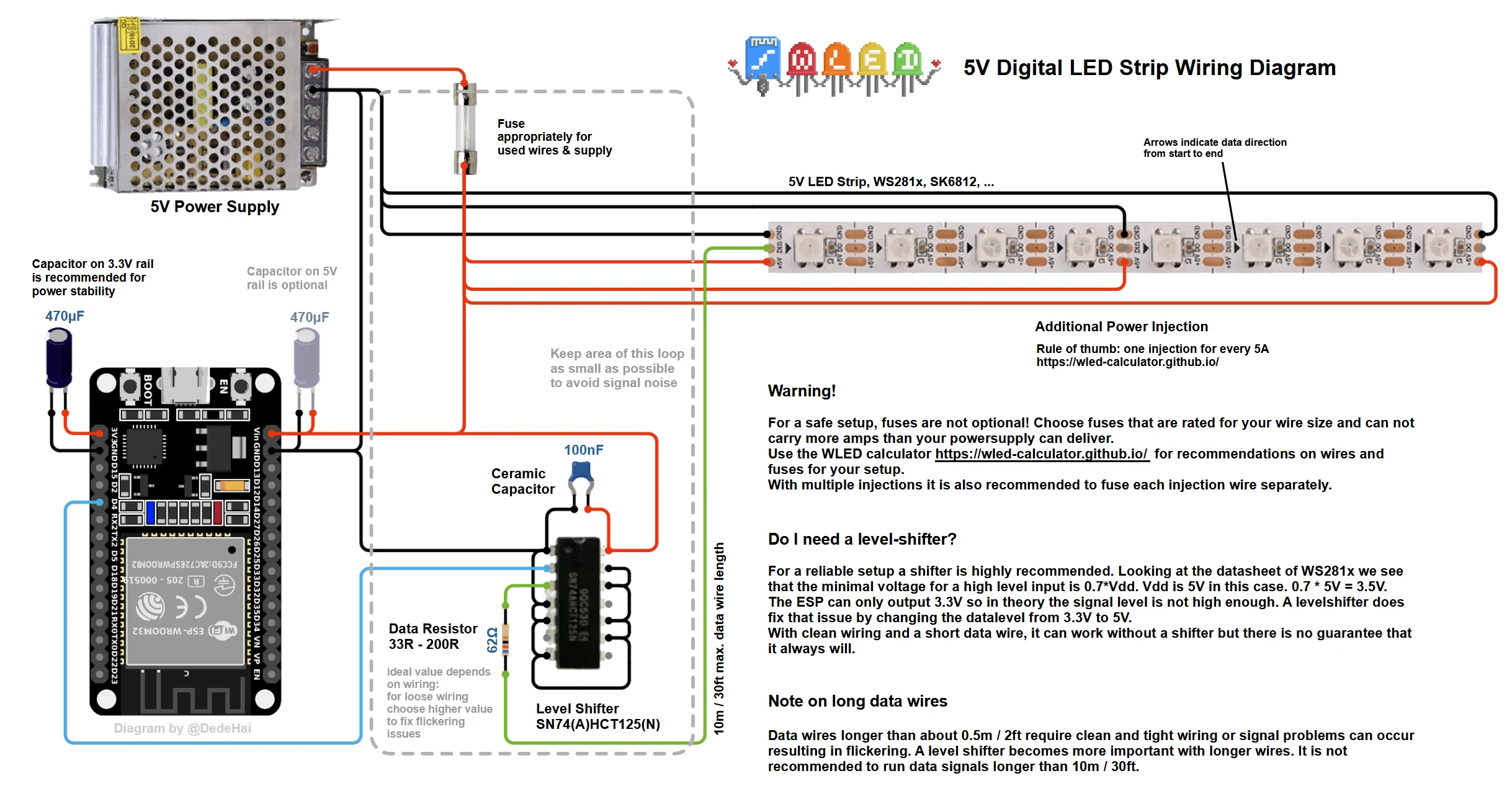
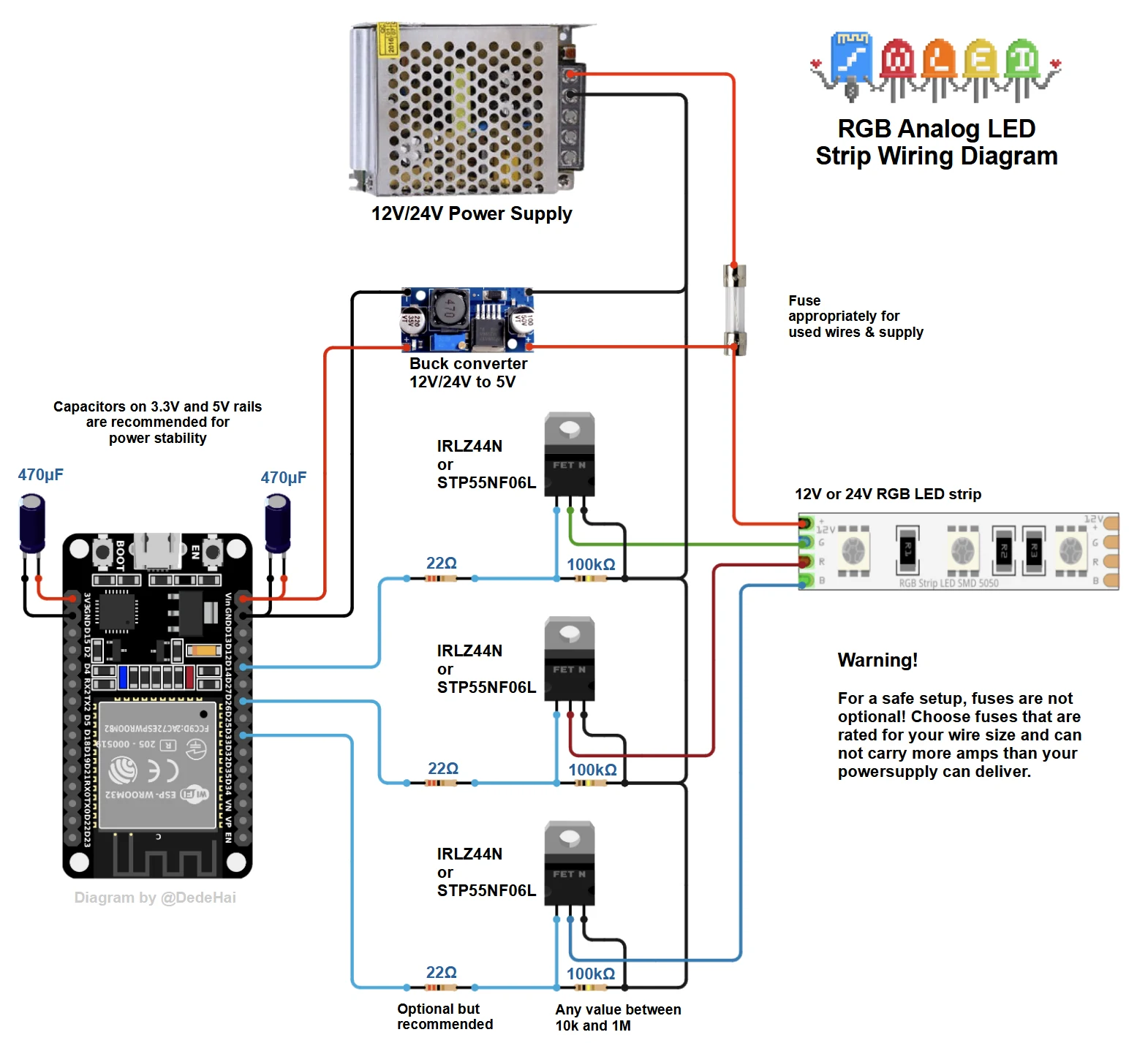
These diagrams explain the two wiring patterns. They do not guarantee a particular controller's connector order, input voltage, GPIO, LED IC, channel order or current rating. Check the exact controller and light records before applying the pattern.
Addressable strip connection
- Supply the strip with its specified DC voltage.
- Connect controller ground to strip ground.
- Connect the controller data output to the strip input marked by the arrow.
- Use a short data wire, and add a level shifter or resistor when the tested controller path requires it.
Analog RGB/RGBW/CCT connection
- Supply the driver with the strip voltage and connect the controller to the driver input.
- Match channel names exactly: R/G/B/W or warm/cool white.
- Never send strip current through a microcontroller GPIO.
- Confirm the driver is constant-voltage or constant-current as the light requires.
Arrow direction matters on pixels. An addressable strip can have the correct voltage and still stay dark when data enters the output end. Find the input arrow before soldering or cutting.
Now choose the smart route, one layer at a time
These names are not six competing choices from one category. They answer different questions, and a real installation often uses two or three of them together.
The correction in one sentence: WLED is firmware and a local control interface, ESPHome is configuration-oriented firmware, Zigbee is a radio mesh network, Matter is a smart-home application standard, Tuya is a vendor ecosystem, and Home Assistant is an automation platform. They are related, but they are not the same type of thing.
Use the conditional route finder to compare everyday value, effects, Apple Home, app-first setup, custom hardware and commercial wired control.
Open the route finderPERSON / AUTOMATION Home Assistant | Apple Home | Google Home | Tuya Smart | WLED UI
|
INTEGRATION / APP HA integration | vendor app | native device UI
|
NETWORK / TRANSPORT Wi-Fi/Ethernet | Zigbee | Thread/IP | DMX/DALI bus
|
DEVICE / OUTPUT WLED controller | Zigbee driver | Matter device | PWM/DMX decoder
|
LIGHT + POWER addressable DATA | analog PWM/CCT | fixture engine + driver + supplyAddressable DATA/SPI for pixels, analog PWM for RGB/RGBW/CCT channels, or a fixture-specific driver input. This layer decides whether sections can act independently.
A controller, smart driver or finished fixture receives commands and produces DATA, PWM or driver-specific output. WLED is firmware and a local control interface on a compatible controller.
Wi-Fi or Ethernet, Zigbee mesh, Thread/IP, or a wired bus such as DMX or DALI. A coordinator, gateway or border router may be required at this layer.
WLED UI, Tuya Smart / Smart Life, Apple/Google/Alexa, or Home Assistant. Home Assistant can sit above several lower-level paths; it is not the light driver.
WLED
Firmware + local controller interfaceChoose it when: You need independently controlled pixels, segments, presets or animated effects.
You also need: An addressable light, compatible LED IC profile, a WLED-capable controller and a local Wi-Fi path.
Boundary: WLED is not a voltage, power supply or LED strip type. Match the controller, data pin, power, data direction and exact strip profile.
Open WLED compatibility pathESPHome
Configuration-oriented firmware + native HA APIChoose it when: You are building custom hardware and want to own the YAML, pins and Home Assistant entity model.
You also need: A compatible microcontroller, a firmware configuration, a local API path and a recoverable power/flash setup.
Boundary: ESPHome is not a finished light engine or automatic compatibility guarantee. The exact component, pin mapping, driver and recovery path still need testing.
Open ESPHome compatibility pathZigbee
Radio network / mesh standardChoose it when: You need local mesh control for dimming, white light or CCT.
You also need: A Zigbee light or driver plus one coordinator or gateway. In Home Assistant, choose ZHA or Zigbee2MQTT as the software path.
Boundary: Zigbee is not the app and not automatically the driver. ZHA, Zigbee2MQTT and Tuya Gateway are separate validation paths.
Open Zigbee compatibility pathMatter
Smart-home application standardChoose it when: You want a certified device that can be shared across supported smart-home platforms.
You also need: A certified Matter device and a Matter controller. The device may use Wi-Fi/Ethernet or Thread; Thread requires a border router.
Boundary: Matter does not define the strip voltage or guarantee advanced effects. Thread alone is not proof that a device is Matter.
Open Matter compatibility pathTuya
Vendor ecosystem / app and cloud platformChoose it when: You want a familiar app, vendor scenes or a Powered by Tuya device path.
You also need: The exact Tuya device, Tuya Smart or Smart Life account, region and any required gateway or internet connection.
Boundary: Tuya is not one radio protocol. Different Tuya products can use different transports, and Home Assistant feature coverage can depend on the cloud integration.
Open Tuya compatibility pathHome Assistant
Home-automation software / orchestration layerChoose it when: You want schedules, sensors and one dashboard across several device paths.
You also need: A working lower-level path first: WLED, Zigbee, Matter, Tuya or another integration, plus the required host, coordinator or controller.
Boundary: Home Assistant combines and automates devices; it does not replace the light engine, driver, power supply, coordinator or border router.
Open Home Assistant compatibility pathController, coordinator and gateway are different
A controller sends DATA, PWM or driver commands to the light. A Zigbee coordinator manages the Zigbee radio network. A gateway or hub joins a device to an ecosystem. One product may combine jobs, but do not assume it does.
Home Assistant is the layer above
Home Assistant can call a WLED integration, a Zigbee integration, a Matter controller or a Tuya integration. It still needs the lower-level device path, and a Zigbee or Thread radio device may still be required.
Animated pixel strip
One possible chain: Home Assistant (optional) -> Wi-Fi -> compatible controller running WLED -> DATA -> addressable strip -> DC supply
Use this when gradients and moving effects matter. Home Assistant is optional and comes after the native WLED control works.
Everyday CCT light
One possible chain: Home Assistant + ZHA/Zigbee2MQTT (optional) -> coordinator -> Zigbee CCT driver -> warm/cool channels -> DC supply
Use this when reliable dimming and warm-to-cool white matter more than per-pixel effects. The coordinator is hardware; ZHA and Zigbee2MQTT are software choices.
Shared Matter fixture
One possible chain: Apple/Google/Alexa/Home Assistant -> Matter controller -> Wi-Fi or Thread (+ border router) -> Matter fixture/driver
Use this when cross-platform commissioning is important. Verify the exact certified device and the basic functions it exposes.
Tuya app-first light
One possible chain: Tuya Smart / Smart Life -> Tuya cloud or gateway -> exact Tuya device -> driver/light engine
Use this when fast vendor-app setup is acceptable. Record internet, account region and which functions Home Assistant can actually see.
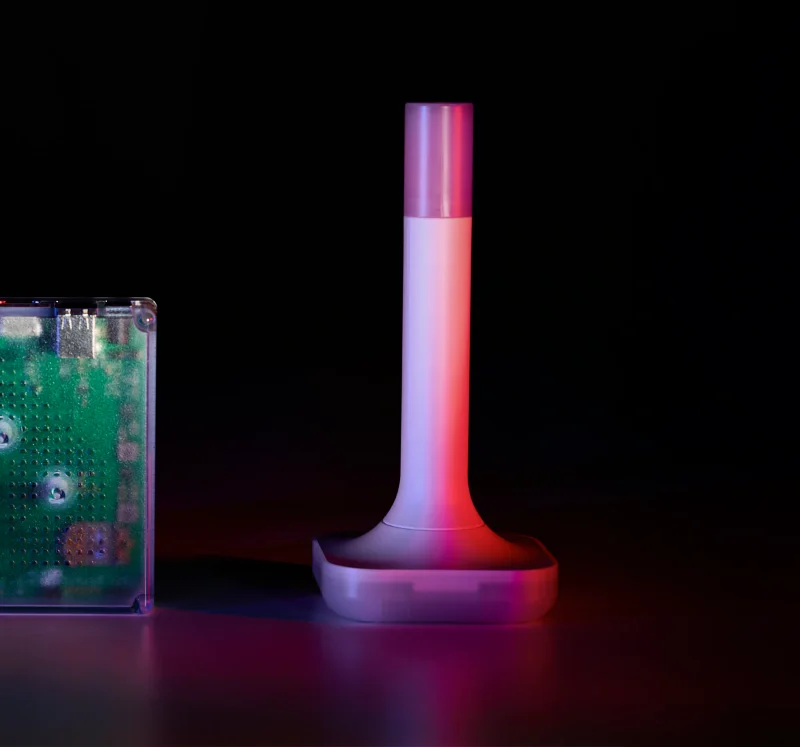
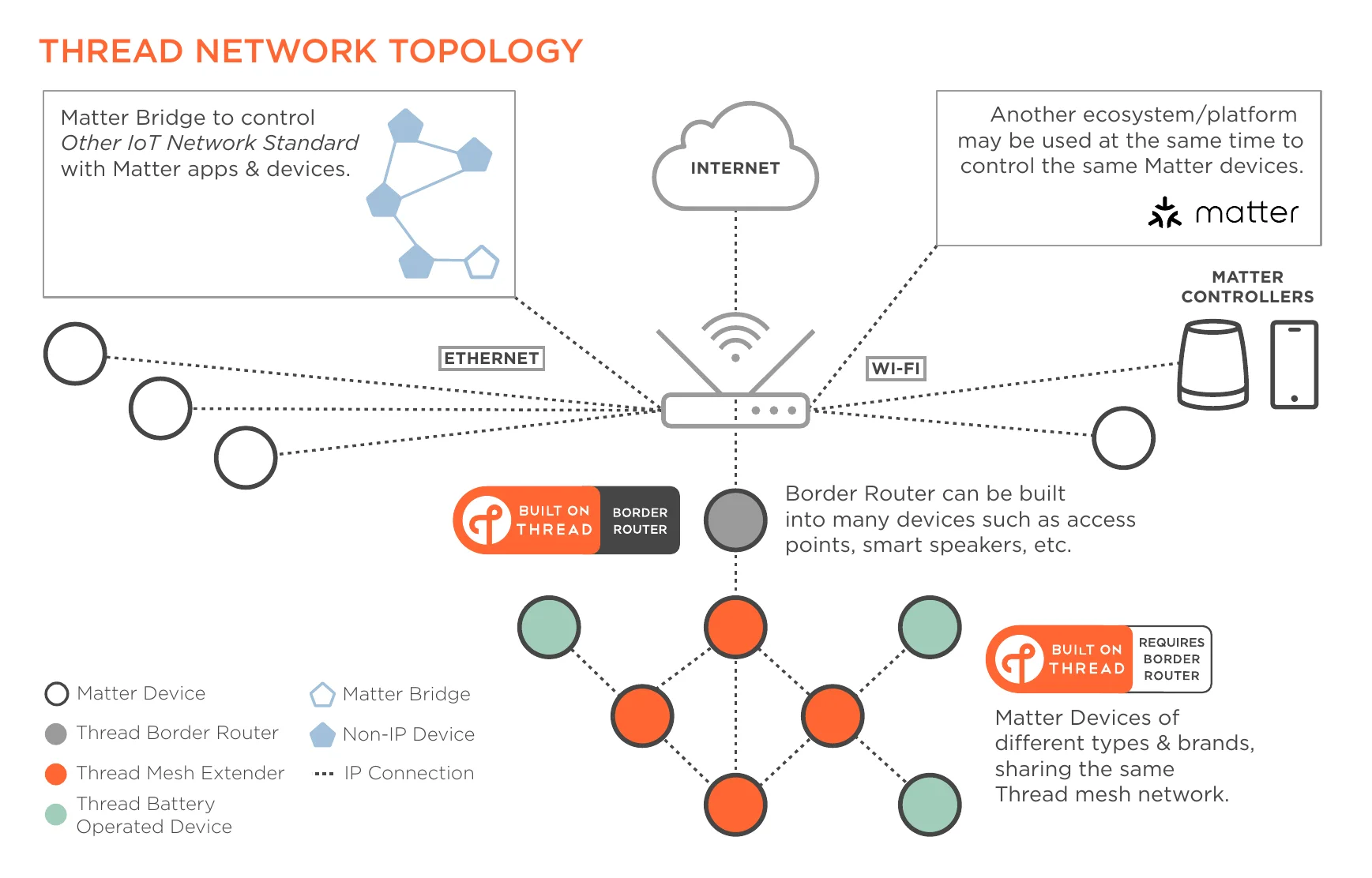
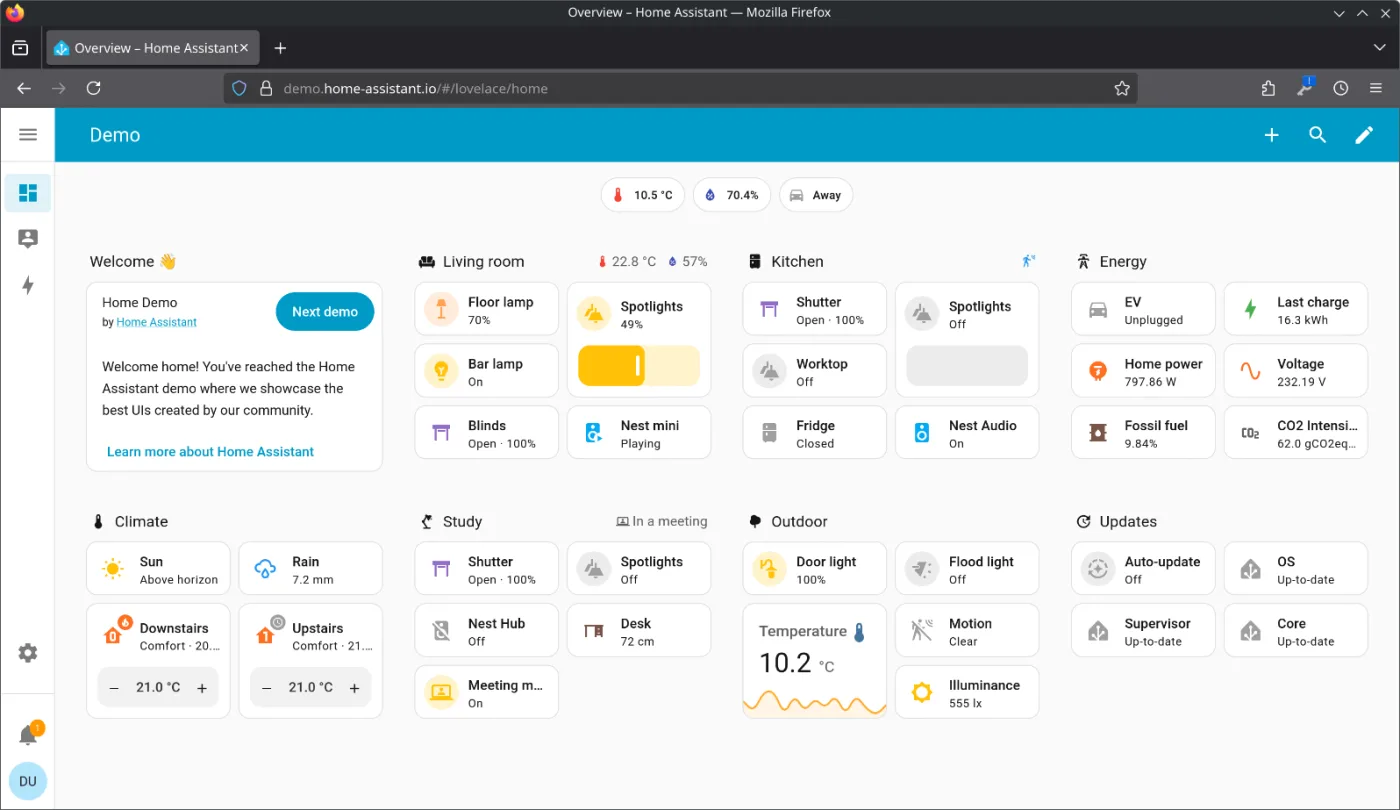
First choose the light output: independent pixels, whole-run PWM/CCT or a fixture-specific driver. Then choose the device and network path. Finally choose the app or automation layer. Home Assistant is usually an optional upper layer, not a replacement for WLED, Zigbee, Matter, Tuya, the driver or the power supply.
Configure one path completely before adding automation
Pairing an app or opening a dashboard is not the same as proving a system. Start with one light, one controller, one gateway path and one expected result. The five runbooks below are intentionally repetitive: a beginner should always know what to do, what success looks like, what to try next and what to record.

WLED and Zigbee are lower-level device/network paths. Matter and Tuya describe different commissioning ecosystems. Home Assistant sits above them. Pick the matching runbook for the hardware in your hands; you do not need to complete all five.
The WLED QR image is an official setup aid. It is not a compatibility or safety certificate.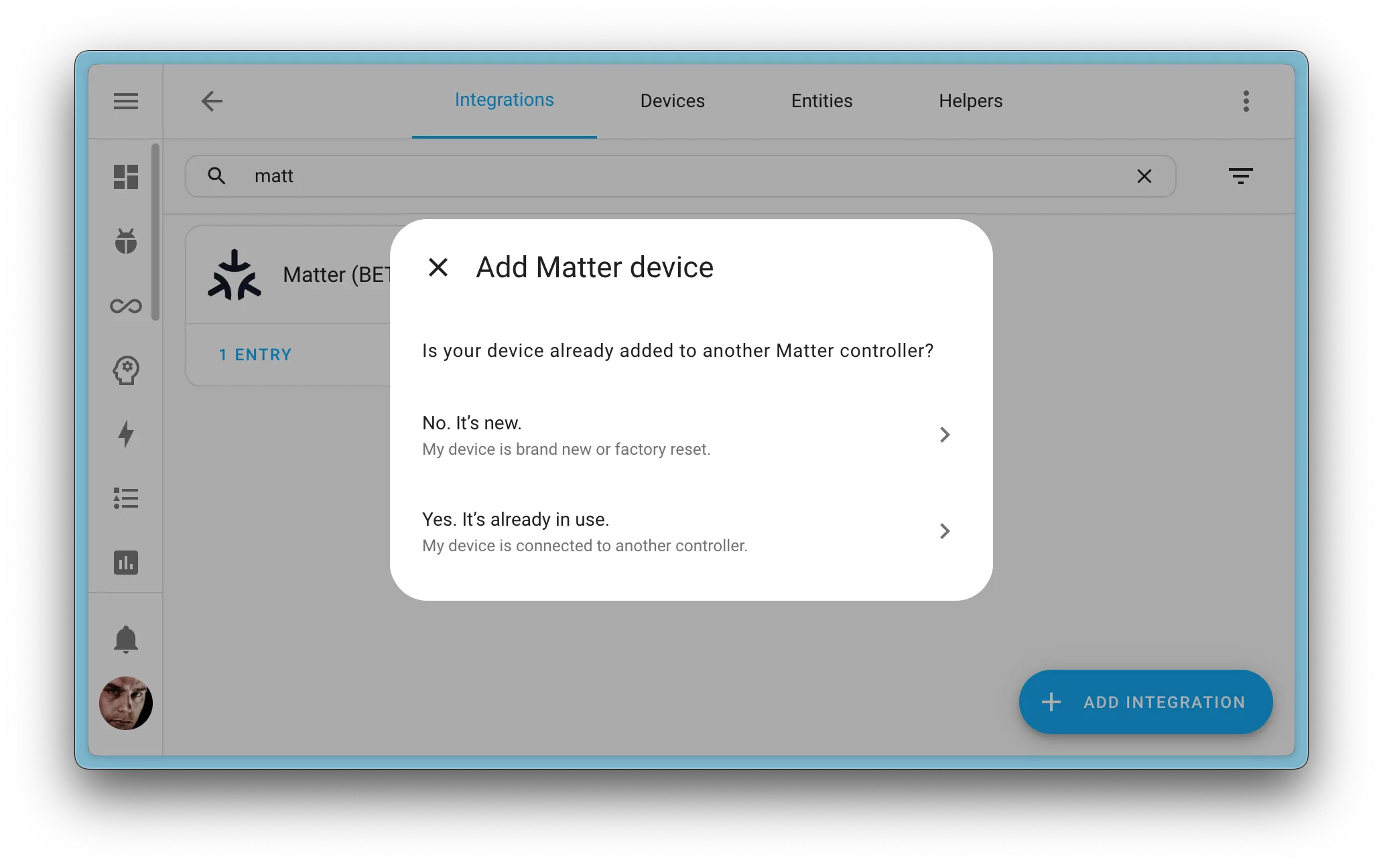
WLED first light: from USB to a working pixel strip
Use this route when individual pixels, gradients, segments or animated effects matter. Prove the native WLED page first; Home Assistant can be added after the light is already reliable.
- A short section of the exact addressable strip, with the input arrow and voltage visible.
- A WLED-capable controller, a data-capable USB cable and a matching low-voltage supply.
- A Chrome or Edge browser, a phone or laptop and a way to record the final settings.
- 01Read the strip and controller labels
Do this: Before connecting power, photograph the strip label and controller pinout. Write down voltage, watts per metre, LED IC, data direction, cut interval, pixel count and the controller output/GPIO you plan to use.
You should see: Your notes contain concrete values such as 24 V DC, an IC profile and a measured pixel count.
If not: If the IC or input arrow is missing, stop and identify the exact variant. Do not choose a profile because the strip is merely called digital.
Record: Strip variant, IC, voltage, length, controller revision and photo filename.
- 02Wire a short section with power disconnected
Do this: Connect supply positive and negative to the strip as marked. Connect controller ground to strip ground. Connect the controller DATA output to the strip end marked by the input arrow. Follow the controller manual if logic power and strip power use separate terminals.
You should see: Every wire has a named destination, the data wire is short, and the controller and strip share the intended signal reference.
If not: If the connector order differs from the diagram, trust the exact controller pinout. Never place the strip voltage on a controller logic pin.
Record: Positive, ground, data input and the controller output pin used.
- 03Flash WLED in the browser
Do this: Open `https://install.wled.me` in Chrome or Edge, connect the controller by a data-capable USB cable, select the supported target and follow the browser installer. Keep the strip power path visible while the firmware is being written.
You should see: The installer reports completion and, with a connected test strip, the first test pixels normally show bright orange.
If not: If no device appears, try another USB cable/port, allow the browser serial prompt and check that the controller is powered. Do not repeatedly flash an unknown target.
Record: WLED version, install date and the installer target shown by the browser.
- 04Join the temporary WLED-AP
Do this: On the phone or computer, join the Wi-Fi network named `WLED-AP` using the temporary password printed by the official quick start (the default is `wled1234` unless the build changed it). Open `4.3.2.1` or `wled.me` while still connected to that network.
You should see: The WLED control page opens and you can see the temporary device UI.
If not: If WLED-AP is absent, wait for boot, power-cycle once and check the controller documentation for a custom AP name. Forget a stale network profile if the phone keeps reconnecting elsewhere.
Record: Temporary AP name and the fact that the local page opened.
- 05Move WLED onto the home Wi-Fi
Do this: Open the gear icon, choose WiFi Setup, scan or type the home network name, enter the case-sensitive password and set a unique mDNS name such as `wled-shelf`. Choose Save & Connect, then reconnect the phone to the home Wi-Fi.
You should see: The controller leaves WLED-AP and the same page opens at the mDNS name ending in `.local` or at the IP shown by the router/WLED app.
If not: `4.3.2.1` and `wled.me` are expected to stop working after the controller joins home Wi-Fi. Reconnect to the temporary AP only to repair Wi-Fi settings.
Record: SSID, mDNS name/IP, AP password change and whether the network is local-only.
- 06Describe the LED output in WLED
Do this: In Config, open the LED or LED Preferences page. Select the exact LED type/IC, data GPIO, color order, RGBW channel order where applicable and the number of LEDs or logical pixels. Save before trying an effect.
You should see: The saved values match the label and the strip input end responds to a basic output.
If not: If nothing responds, return to the short piece, re-check arrow direction and ground, then test one known-supported IC profile. Keep an unknown result marked unconfirmed.
Record: LED type, GPIO, color order, white-channel order, pixel count and brightness/current limits.
- 07Set a conservative current limit
Do this: Set WLED current limiting to a conservative value for the short test and keep the physical fuse in the positive supply branch. Treat software limiting as a load guard, not as wire or short-circuit protection.
You should see: The controller can run the short strip without rebooting and the supply, terminals and wire remain cool.
If not: If the controller resets or a terminal warms, reduce the test load and inspect voltage drop, headroom, wire gauge and connection pressure before scaling up.
Record: Current-limit setting, fuse rating and measured supply voltage under load.
- 08Test solid colors before effects
Do this: Select solid red, green, blue and white one at a time. Repeat at 10%, 50% and 100% brightness only while watching the supply and connectors. Test a simple effect only after the solid colors are correct.
You should see: Every pixel or logical group responds, colors are not swapped, white is stable and no restart occurs.
If not: Swapped colors point to color order; one lit pixel points to data direction/IC/count; a restart points to power or current capacity. Change one variable at a time.
Record: Color test result, maximum safe brightness, observed temperature and any symptom.
- 09Save a recovery preset
Do this: Save a simple solid-white or low-brightness preset with a clear name. Keep the working IP/mDNS address and a copy of the LED settings with the build record before moving the strip into a profile.
You should see: A second person can restore a known state without guessing which effect was active.
If not: If the preset is not recalled after a reboot, test the preset number and boot behavior before installation.
Record: Preset name/number, boot preset, firmware and a photo of the working bench.
- 10Add Home Assistant only after native control works
Do this: In Home Assistant, use Settings > Devices & services > Add integration and choose WLED, or accept discovery when it appears. Select the discovered controller, then test on/off and brightness from Home Assistant.
You should see: A WLED device and one or more light/segment entities appear, while the native WLED page still works.
If not: If discovery fails, confirm both devices are on the same local network and use the controller IP only where the integration allows it. Do not debug the strip and the automation at the same time.
Record: Home Assistant version, integration name, entity IDs and which WLED features are exposed.
Zigbee first light: coordinator, pairing and a stable mesh
Use this route for ordinary dimming, warm/cool white or a fixture that uses a Zigbee driver. Zigbee is the radio network; ZHA and Zigbee2MQTT are two different software paths into that network.
- The exact light or driver model, its factory-reset/pairing instructions and its supported channels.
- One Zigbee coordinator or vendor gateway. A Zigbee network has one coordinator, not one per lamp.
- A chosen integration path: ZHA, Zigbee2MQTT or the vendor gateway. Do not use one device as proof for all three.
- 01Confirm that the device is actually Zigbee
Do this: Read the product record and label for the Zigbee mark, voltage, channel type and gateway requirement. A Tuya label or a 2.4 GHz radio label alone does not prove that the device can join your Zigbee network.
You should see: You know whether the device is a Zigbee light, a Zigbee driver for a separate strip, or a finished fixture.
If not: If the listing only says smart/Wi-Fi/2.4 GHz, pause and request the exact protocol and model documentation.
Record: Model, variant, voltage, channels, reset method and gateway requirement.
- 02Choose one Zigbee software path
Do this: For Home Assistant, choose ZHA or Zigbee2MQTT and keep one coordinator assigned to that path. If you use a vendor gateway, pair through that gateway instead. The same device can join only one Zigbee network at a time.
You should see: You can name the path in one line, for example: coordinator -> ZHA -> CCT driver.
If not: If you are switching paths, remove or factory-reset the device first. Do not conclude that an unpaired device is incompatible until the reset and path are correct.
Record: Coordinator model, integration name/version and network channel if visible.
- 03Place the coordinator for the first test
Do this: Connect the coordinator directly or through a short, stable USB extension to the Home Assistant/Zigbee host. Keep it away from USB 3 noise, metal enclosures, Wi-Fi access points and the power supply. Put the light within a few metres for pairing.
You should see: The integration can see the coordinator and the device is physically close enough for a clean first interview.
If not: If the adapter is not detected, check the serial path and restart the host. Avoid a flaky Wi-Fi/WAN serial proxy for a first setup.
Record: Host, serial path, coordinator location and nearby Wi-Fi channel if known.
- 04Configure the selected integration
Do this: For ZHA, open Settings > Devices & services > Add integration > Zigbee Home Automation, choose the detected serial device/radio type and submit. For Zigbee2MQTT, open its frontend, confirm the adapter is connected and use its Permit join control.
You should see: The integration shows a running Zigbee network and a control that can accept a new device.
If not: If setup reports a serial or adapter error, stop and fix the coordinator connection/firmware before trying the lamp. A gateway app and ZHA cannot both own the same coordinator.
Record: Integration setup screenshot, adapter path and any error text.
- 05Factory-reset the light and start pairing mode
Do this: Follow the exact device instructions for reset and pairing; common patterns include a timed power cycle or holding a button, but the exact sequence is model-specific. Keep the light powered and close to the coordinator.
You should see: The light blinks, pulses or otherwise indicates that it is searching for a network.
If not: If there is no indication, repeat the reset slowly and verify that the light is receiving its rated voltage. Remove it from any old gateway first.
Record: Reset sequence, indicator behavior and number of attempts.
- 06Permit the device to join
Do this: In ZHA choose Add device. In Zigbee2MQTT press Permit join (All), then start the device pairing sequence. The Zigbee2MQTT frontend normally opens joining for about 254 seconds; close it early when the device is found.
You should see: A new device appears and the integration starts an interview or device configuration process.
If not: If the timer ends, permit join again. Pair beside the coordinator, keep the device awake/powered and check whether another gateway still owns it.
Record: Pairing start time, join path and the device network address/name.
- 07Wait for the interview and test entities
Do this: Let the integration finish reading the device before renaming it. Test on/off, brightness and warm/cool channels one at a time. For a driver, confirm the connected light responds, not only that the driver icon appeared.
You should see: The device is marked ready/interviewed and the expected light entities or controls are present.
If not: If only on/off appears, compare the exact model support and exposed functions. Missing CCT or color controls can be a definition/firmware limitation, not a wiring fault.
Record: Device name, entities, exposed controls and interview/support result.
- 08Move it and let the mesh settle
Do this: Move the powered device to the planned location, then test again after the mesh has had time to route. Mains-powered Zigbee devices can act as routers; battery sensors normally do not extend the mesh.
You should see: The light still responds from its final location and the network map does not show an unexpected weak link.
If not: If it fails only at the final location, add a compatible mains-powered router or move the coordinator. Do not hide a range problem by repeatedly resetting the light.
Record: Final distance, nearby router devices and the result after a restart.
- 09Freeze the working pairing path
Do this: Write down the coordinator, software path, reset behavior, device definition, channel and entities. Take a screenshot of the successful control and keep a spare reset instruction with the installation record.
You should see: A future replacement can follow the same path without guessing whether the issue is Zigbee, the driver or Home Assistant.
If not: If you cannot name the coordinator and integration, the system is not ready for a build or hidden installation.
Record: Final pairing record, firmware versions, known limits and next test.
Home Assistant first automation: from installation to one reliable rule
Home Assistant is the orchestration layer above WLED, Zigbee, Matter, Tuya and other integrations. It does not replace the power supply, light driver, coordinator or network.
- A supported host running Home Assistant, a stable local network and a backup plan for the configuration.
- One light that already works from its native app or integration, plus one sensor or time trigger for the first rule.
- The exact entity names you intend to control; do not start with a whole house of unknown devices.
- 01Install a supported Home Assistant host
Do this: Choose the installation type documented for your hardware. For a beginner, a supported Home Assistant OS host is usually easier to maintain than assembling several containers. Connect it to stable power and the local network.
You should see: The setup page opens at the host address and the machine remains available after a reboot.
If not: If the page disappears after power loss, fix host storage, network or boot order before adding lights.
Record: Host type, Home Assistant version, IP reservation and backup location.
- 02Complete onboarding once
Do this: Open the local Home Assistant address, create the administrator account, choose the time zone and location, and allow the discovery scan to finish. Use a clear area name such as Hallway or Shelf rather than leaving everything unnamed.
You should see: The dashboard loads and Settings > Devices & services is available.
If not: If onboarding cannot finish, check the host clock, browser network and storage health before changing integrations.
Record: Admin recovery method, time zone, location and the first backup date.
- 03Add the lower-level integration
Do this: Open Settings > Devices & services > Add integration and choose the path that matches the working hardware: WLED, ZHA, Matter, Tuya or another exact integration. Accept discovery only after checking the device name and network.
You should see: A configured integration card appears and lists the expected device.
If not: If the integration cannot connect, test the native device first. For Zigbee and Thread, confirm the required radio hardware is present.
Record: Integration name, version, host/IP, coordinator or gateway and discovery method.
- 04Learn the four Home Assistant nouns
Do this: Treat an integration as the software adapter, a device as the physical/logical unit, an entity as one controllable or measurable part, and a service/action as the command. A light entity is the thing a first automation should target.
You should see: You can point to the exact light entity and read its current state in the UI.
If not: If you see several similarly named entities, assign the device to an area and rename the entity before automating it.
Record: Area, device name, entity ID and the service/action tested.
- 05Make one manual action work
Do this: From the dashboard, turn the light on, change brightness and set one intended color/CCT/effect. Wait for the state to update, then turn it off. Use the native integration page to isolate this test from automation.
You should see: The physical light follows the command and the entity state changes to match.
If not: If the UI changes but the light does not, inspect the lower-level integration, power and network. Do not create more automations to compensate.
Record: Command, visible state, response time and any unsupported feature.
- 06Create the smallest automation
Do this: Open Settings > Automations & scenes > Create automation. Choose one trigger, such as motion detected or sunset, add a simple night-time condition if needed, then call the light turn-on action with a modest brightness. Save it with a specific name.
You should see: The automation appears enabled and a single trigger changes the light once.
If not: If it fires repeatedly, add a condition/cooldown or check the sensor event. If it never fires, inspect the trigger entity and automation trace.
Record: Trigger, conditions, action, target entity, brightness and mode.
- 07Use traces and the logbook to debug
Do this: When a rule fails, open its trace/logbook and identify whether the trigger happened, the condition passed and the service ran. Compare the physical result with the entity state.
You should see: You can name the first failed layer instead of guessing between sensor, Home Assistant and light hardware.
If not: If the device is unavailable, restore the lower-level path first. An automation trace cannot repair a lost coordinator, Wi-Fi route or power feed.
Record: Trace date, failed step, entity availability and the single change made.
- 08Plan restart and recovery behavior
Do this: Restart Home Assistant once after the manual and automated tests pass. Check that the integration reconnects, entities return and the light does not unexpectedly turn on at full brightness. Keep a current backup before upgrades.
You should see: The dashboard and the first automation recover without a manual re-pair.
If not: If recovery fails, record which integration is unavailable and use the native control path while repairing it.
Record: Restart result, boot state, backup filename, recovery time and known cloud dependencies.
Matter first light: check the transport before scanning the code
Matter is the smart-home application standard. The device still uses Wi-Fi/Ethernet or Thread underneath, and Thread devices need a Thread Border Router. A Thread logo alone is not proof of Matter.
- The device packaging showing the Matter logo, the Wi-Fi or Thread logo, and a QR code or numeric setup code.
- A current Home Assistant Matter integration or another supported Matter controller.
- A phone with the Home Assistant Companion app and Bluetooth enabled; bring it close during commissioning.
- 01Read both logos and save the code
Do this: Photograph the device, Matter logo, transport logo and QR/numeric setup code together. Confirm whether the variant is Wi-Fi or Thread. Keep the code in a secure installation record because a factory reset may require it again.
You should see: You can answer “Matter over Wi-Fi” or “Matter over Thread” without guessing from a product title.
If not: If only Thread is shown, request explicit Matter certification. If the code is missing, stop before resetting the device.
Record: Matter model, transport, setup code location and certified functions.
- 02Prepare the controller and network
Do this: In Home Assistant, install the Matter integration from Settings > Devices & services. On Home Assistant OS, accept the official Matter server setup. For Thread, make sure a supported Thread Border Router is on the same home network; for Wi-Fi, keep the phone and device on the intended 2.4 GHz network when required by the device.
You should see: The Matter integration is ready and the required Wi-Fi or Thread path is visible before you start scanning.
If not: If the Matter server or border router is missing, do not keep retrying the code. Fix the transport layer first.
Record: Matter server status, border router/ Wi-Fi network, phone OS and app version.
- 03Power the device close to the phone
Do this: Power the light or driver and put it into its documented commissioning mode. Keep the phone close to the device and the network equipment. Bluetooth is used for commissioning; normal control continues over Wi-Fi or Thread.
You should see: The device enters pairing mode and the phone can begin the add-device flow.
If not: If no pairing mode appears, use the device reset instructions and confirm the code is still available.
Record: Pairing indicator, reset count and distance during commissioning.
- 04Add it from the Home Assistant app
Do this: Open the Home Assistant Companion app, go to Settings > Matter, choose Add device, select No, it is new, then scan the QR code or enter the numeric setup code. Follow the phone prompts until commissioning completes.
You should see: The app reports that the device was added and redirects to its Matter device page.
If not: If commissioning says Matter is unavailable, update the Companion app/phone services, wait for required modules and re-check the transport prerequisites.
Record: Commissioning date, fabric/controller and the exact error if it failed.
- 05Name the device and verify basic light controls
Do this: Rename the device to include its physical location. Test on/off and brightness first, then the basic color or CCT controls the device claims. Keep the native app available until the test is complete.
You should see: A light entity appears in Home Assistant and the physical device follows the basic commands.
If not: If the basic light works but effects, scenes or a wide CCT range do not appear, record that as a Matter feature boundary rather than a wiring failure.
Record: Device/entity names, basic controls, unsupported controls and response time.
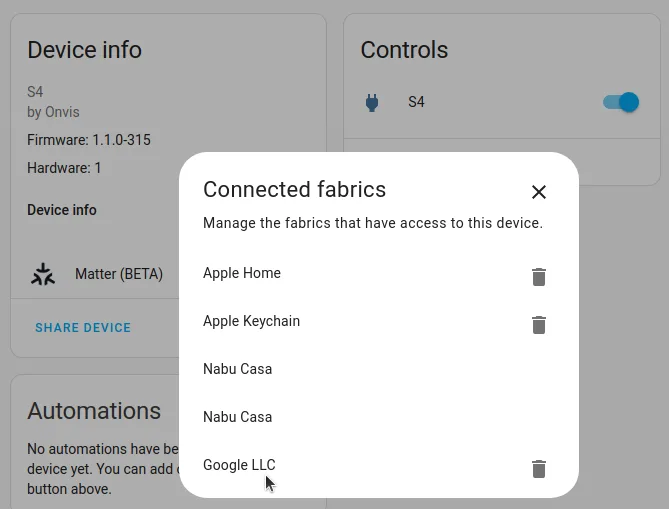
- 06Understand multi-fabric sharing
Do this: If the same Matter device must appear in Apple Home, Google Home or another controller, use the Matter device page to Share device and scan the sharing code in the other app. Do not factory-reset a working device just to share it.
You should see: The second platform lists the device while Home Assistant continues to control it.
If not: If sharing fails, verify the second controller supports the device type and that the original fabric remains online.
Record: Controllers/fabrics sharing the device and which features each exposes.
- 07Test after a network restart
Do this: Restart the Matter controller or briefly restart the network path after the basic test. Verify that the device returns without a new commission and that a Thread device still has a reachable border router.
You should see: The device becomes available again and the basic light state can be changed.
If not: If it disappears, separate a border-router/network issue from a device issue and restore the transport before re-pairing.
Record: Recovery time, network state, border router and last-seen status.
- 08Freeze the certified boundary
Do this: Publish only the exact Matter variant and the features you verified. Keep the setup code, transport, controller and firmware together with the product record.
You should see: The record says what was tested, on which controller and what remains unknown.
If not: If you only know that the package says Matter, mark the compatibility as untested instead of promising every platform or effect.
Record: Certification evidence, controller, transport, firmware and test limits.
Tuya first light: App pairing, cloud boundary and Home Assistant
Tuya is an ecosystem and cloud/app path, not one radio protocol. Different products can use Wi-Fi, Zigbee or another transport, so the exact device and account region decide what can be tested.
- The exact Powered by Tuya device, its voltage/driver requirements and the reset method from the device manual.
- Either Tuya Smart or Smart Life, one account and the correct country/region selected during account setup.
- Internet access for the first app test and a second screen if you plan to link the device to Home Assistant.
- 01Identify the app and transport
Do this: Read the box and manual to determine whether the device belongs in Tuya Smart or Smart Life and whether it uses Wi-Fi, Zigbee or a vendor gateway. Do not infer the transport from the word Tuya.
You should see: You know the app, account region, gateway requirement and the functions the device claims.
If not: If the app name or region is unclear, ask before creating several accounts; a device can appear missing simply because it belongs to another region/app.
Record: App, account region, transport, gateway and device model.
- 02Add the device in the vendor app
Do this: Reset the device according to its manual, open the correct app, tap + or Add Device, choose the matching category and follow its Wi-Fi/Bluetooth/gateway pairing steps. Keep the phone near the device during the first join.
You should see: The device appears in the app with a stable name and can be switched without the Home Assistant layer.
If not: If pairing times out, check 2.4 GHz requirements, reset mode, region, gateway power and whether the device is already bound to another account.
Record: Pairing mode, app screens, account region and first successful timestamp.
- 03Test the vendor functions first
Do this: In the Tuya app, test on/off, dimming, color/CCT and any scenes one by one. Take a screenshot of controls that matter to the project; the app is the reference for what the device advertises, not proof that every integration exposes it.
You should see: The physical light follows the app and you have a list of desired functions.
If not: If a scene works but a basic light control does not, repair the device/app path before connecting Home Assistant.
Record: Function list, scene names, response time and internet requirement.
- 04Prepare the Home Assistant link
Do this: In Home Assistant, open Settings > Devices & services > Add integration and choose Tuya. On the Tuya/Smart Life app, open Me > the gear icon > Account and Security and locate the User Code. Keep a second screen ready for the QR code shown by Home Assistant.
You should see: Home Assistant asks for the account/User Code flow and the phone can scan its linking QR code.
If not: If User Code is missing, confirm the app account and region. Do not paste a password where the integration asks for User Code.
Record: Integration date, app, region, User Code storage location and account owner.
- 05Scan the Home Assistant QR code
Do this: In Smart Life or Tuya Smart, tap + or Add Device, choose Scan, and scan the QR code displayed by Home Assistant. Approve the link and wait for the integration to finish importing the account devices.
You should see: The Tuya integration card appears and at least the previously tested light is listed.
If not: If the QR code is rejected, keep both apps current, use the correct app and repeat the User Code flow. Check that the phone can reach the internet.
Record: QR link result, integration status and imported device name.
- 06Reload after adding new app devices
Do this: When you add another light in the vendor app later, open Settings > Devices & services, find Tuya, open its menu and choose Reload. Then check the device list again.
You should see: The new device appears without creating a second, duplicate integration.
If not: If it still does not appear, check the account region and whether the device is in the same app account that was linked.
Record: Reload time, new device and duplicate-account checks.
- 07Compare exposed entities with the app
Do this: Open the imported device in Home Assistant and compare its entities with the functions tested in the Tuya app. The official integration uses a device SDK and may not expose every data point; scenes may be available even when a detailed control is not.
You should see: The record distinguishes app capability from Home Assistant capability instead of calling them identical.
If not: If functions are missing, download device diagnostics from the integration and record the exposed status/function data. Do not promise local control when the path is cloud-based.
Record: Entity list, missing functions, cloud dependency and diagnostics filename.
- 08Test region, internet and re-authentication
Do this: Restart Home Assistant and briefly test with the vendor cloud reachable. Write down whether the light remains controllable, how long commands take and what happens when the account needs re-authentication.
You should see: The system has an honest recovery note for internet loss, region changes and account terms updates.
If not: If the app works but Home Assistant does not, repair the cloud/account integration first; replacing the driver will not fix a missing SDK data point.
Record: Internet dependency, recovery behavior, re-auth steps and final feature boundary.
Only after the light works, close the physical loop
An aluminum profile, diffuser or enclosure changes what people see and how the system survives. It is part of the optical and thermal design, not a cosmetic afterthought.
Choose diffuser density and LED setback together.
Use end caps, glands and a small service loop rather than burying a solder joint.
A protected strip can lose its rating when the cut end or cable entry is left open.
Future repairs need to know where the fuse, controller and injection points are.
A finished fixture may combine optics, driver and housing. Confirm the exact smart driver and gateway path rather than assuming the fixture image proves compatibility.
Open the fixture recordHome Assistant is the conductor, not the light engine
Once manual control works, automation becomes easy to reason about. A sensor creates an event; Home Assistant applies logic; the validated integration changes the light state.
motion sensor  ->  Home Assistant automation  ->  validated light service
time schedule   ->  condition / scene           ->  brightness, CCT, color or effect
presence event -> cooldown / safety condition -> WLED, Zigbee, Matter or Tuya pathThe software adapter that lets Home Assistant talk to WLED, Zigbee, Matter or another service.
A physical or logical unit, such as one controller or one motion sensor.
One controllable or measurable part of a device, such as a light, brightness value or temperature sensor.
The command Home Assistant calls, such as turning a light on or setting a color.
The event that starts an automation, such as motion, sunset or a schedule.
A condition decides whether to continue; a scene stores a group of desired light states.
Turn the light on, dim it and set its intended color or CCT from the native integration.
Choose motion or time, not five sensors at once. Confirm the event appears in Home Assistant.
Use occupancy, time window or brightness so the automation does not fight the person in the room.
Decide what happens after a restart, lost network, unavailable device or manual override.
An automation test is not a compatibility test. A service call can succeed while an effect, CCT range, pairing path or reset behavior remains unsupported. Record those separately.
Use the symptom to choose the next measurement
Do not replace three parts at once. A symptom narrows the layer to inspect: power, data, driver, gateway, network or automation.
| Symptom | Check first | Next safe move |
|---|---|---|
| Nothing lights | Measure the supply at the light input, then check polarity, fuse, connector and controller enable state. | Do not keep increasing the supply voltage. Match the printed voltage on the light engine. |
| Only the first pixels light | Check DATA direction, pixel count, signal ground and the selected LED IC. | Try a short section and one supported IC profile before changing hardware. |
| The far end is dim or a different color | Measure voltage at the far end under load and inspect injection points and connector heating. | Add correctly fused injection or shorten the branch; do not hide a hot connector in the profile. |
| Controller resets when white is selected | Calculate the white load, inspect headroom and watch the supply voltage during the transition. | Separate controller power from the high-current strip path when the board requires it. |
| Zigbee pairing fails | Confirm pairing mode, coordinator path, distance and whether another gateway still owns the device. | Factory reset and test beside the coordinator; document the successful path. |
| Matter device asks for a border router | Determine whether the device uses Thread and whether a supported Thread border router is available. | A Thread logo alone is not proof of Matter support or Home Assistant readiness. |
| Remote app works but Home Assistant is missing features | Compare the app functions with the integration entities and cloud/local boundary. | Publish only the functions exposed by the exact integration path. |
Write down the supply voltage under load, controller model, firmware, LED setting, coordinator path, distance and what changed. A short log is more useful than a photo of a box.
Use the same seven gates for a sample and a batch
A sample proves a configuration. It does not automatically prove every length, color, firmware version or installation environment. Carry the evidence forward one gate at a time.
- 01Write the brief
Location, length, desired brightness, color quality, effect, target market and environment.
- 02Lock the light engine
Record the exact light type, voltage, channel count, LED IC, cut interval and physical dimensions.
- 03Build the electrical BOM
Driver, controller, load, 25% starting headroom, branch fuse, cable, injection and heat path.
- 04Bench-test the selected variant
Check on/off, colors, dimming, CCT, effects, current draw, connectors and restart behavior.
- 05Test the integration path
Pair the intended coordinator or app and record the exact firmware, integration and exposed entities.
- 06Install the mechanical finish
Check glare, dots, temperature, cable exits, service access and assembled protection boundary.
- 07Freeze what is true
Publish the SKU, variant, evidence status, known limits and the next test instead of a blanket promise.
Before you start a project or place an order
Check the items as you make the build specific. The progress is stored in this browser only; it is not sent to the store.
Small dictionary for the first conversation
When a product page uses a word you do not know, map it to a responsibility in the system instead of guessing from the label.
| Term | Plain-language meaning |
|---|---|
| Addressable | A light engine where an individual pixel or group can receive its own color/brightness value. |
| Analog / PWM | A channel whose average power is changed by switching it rapidly; the whole connected run normally changes together. |
| Voltage / current / power | Voltage (V) is electrical pressure, current (A) is flow, and power (W) is the amount being used. The simple relationship is watts = volts x amps. |
| Constant-voltage / constant-current | A constant-voltage driver holds a voltage such as 24 V for a strip. A constant-current driver regulates current for a fixture designed for that method; they are not interchangeable. |
| Data direction | Addressable strips normally have an input and output. Follow the printed arrow or DI/DO marking so data enters the input end. |
| PWM | Pulse-width modulation dims a channel by switching it rapidly. It is common for analog RGB, RGBW and CCT control. |
| Decoupling capacitor | A capacitor placed near a power input can help absorb fast supply changes. The value and placement belong to the exact controller and light design; it is not a substitute for correct wiring or a fuse. |
| Level shifter | A small circuit that translates a controller signal level, for example from a 3.3 V microcontroller to a 5 V data input. Use it when the tested path requires it. |
| Series resistor | A small resistor in the data line can reduce ringing on some short digital-light connections. Choose it from the controller and signal test, not from a generic shopping list. |
| mDNS / local name | A local-network naming method that can let you open a controller by a memorable name instead of its numeric IP address. It depends on the network and is not remote access. |
| CCT | Correlated color temperature. A tunable-white light blends warm and cool emitters; it is not the same as color quality or CRI. |
| RGBW / RGB+CCT | RGBW adds one dedicated white channel to red, green and blue. RGB+CCT usually adds warm and cool white channels, so the controller needs more outputs. |
| Driver | The electrical stage that supplies the voltage or current the light engine requires. |
| Controller | The logic device that decides brightness, color, effect or scene and sends the control signal. |
| Coordinator / gateway | The radio or network device that joins and manages Zigbee or another smart-home fabric. |
| Thread Border Router | A network device that forwards traffic between a Thread mesh and the local IP network. A Thread logo alone does not prove Matter support. |
| Mesh | A network in which powered devices can relay messages. Pair close to the coordinator first, then test the planned location. |
| Segment | A logical portion of a WLED strip. One physical strip can have multiple segments with different effects or colors. |
| Power injection | A second or later power feed to the same low-voltage run to reduce voltage drop. |
| Headroom | Extra driver capacity above the calculated load so normal variation does not run the supply at its limit. |
| Variant | A specific combination of voltage, length, color, driver, controller or firmware; compatibility belongs to this level. |
Learn the standard, then verify the exact hardware
This guide reorganizes public technical information for a beginner audience. The reading order and runbooks were cross-checked against official WLED, Home Assistant, Matter and Zigbee2MQTT documentation, plus practical LED power notes from established maker references. Official documentation explains the standard workflow; the product record and test notes decide what a specific configured system actually does.
- WLED Quick StartBrowser flash, WLED-AP, Wi-Fi setup and first light ->
- WLED LED strip referenceAddressable versus analog behavior and IC profiles ->
- WLED wiring pro tipsPower injection, fuses and high-current boundaries ->
- Home Assistant installationSupported host choices and the initial server setup ->
- Home Assistant getting startedOnboarding, discovery, devices and the first automation ->
- Home Assistant terminologyIntegrations, devices, entities, automations and scenes ->
- Home Assistant automation basicsTriggers, conditions and actions in the visual editor ->
- Home Assistant WLEDOfficial integration and segment reference ->
- Home Assistant ZHACoordinator setup, Zigbee network and device path ->
- Zigbee2MQTT pairingPermit join, reset and successful interview ->
- Home Assistant MatterCommissioning, Thread and border-router boundaries ->
- Home Assistant TuyaUser Code, QR linking and exposed-function limits ->
- Adafruit NeoPixel UberguideBeginner grounding, data and power habits ->
- QuinLED power selectionPractical watts, amps and headroom examples ->
- Connectivity Standards AllianceMatter standard overview ->